AI Agent Call Settings
This article provides a basic overview of configuring your AI call handling system. You'll learn where to set up call transfer numbers, select voice options, customize advanced settings, and more to ensure efficient call management and enhanced customer interactions.
Step 1
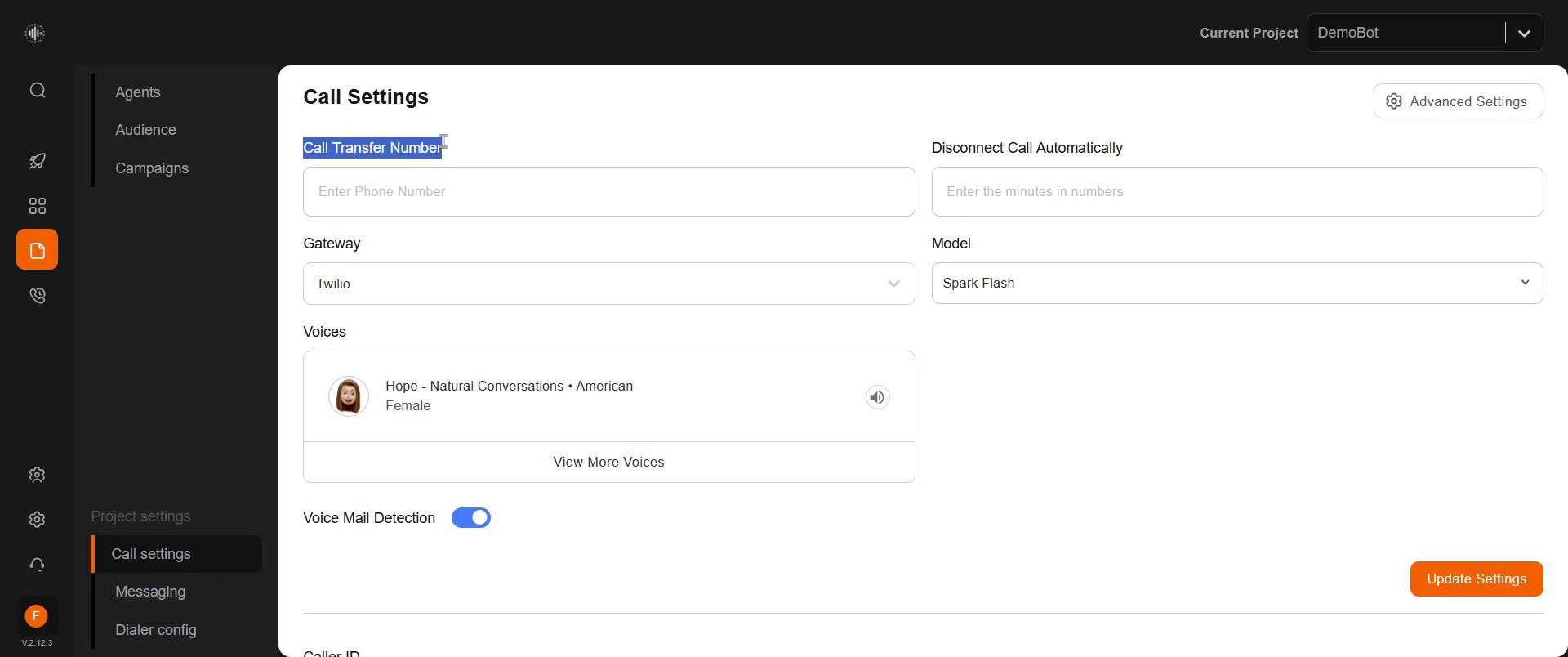
Navigate to the 'Call Settings' tab, located right below the 'Project Settings' tab. Click on 'Call Settings.' Here, you will find an option to add a call transfer number. If you need the AI voice agent to transfer calls to a human agent under specific circumstances, add the desired number here. When a call scenario requires transfer to another agent, the call will be redirected to this number immediately.
Step 2
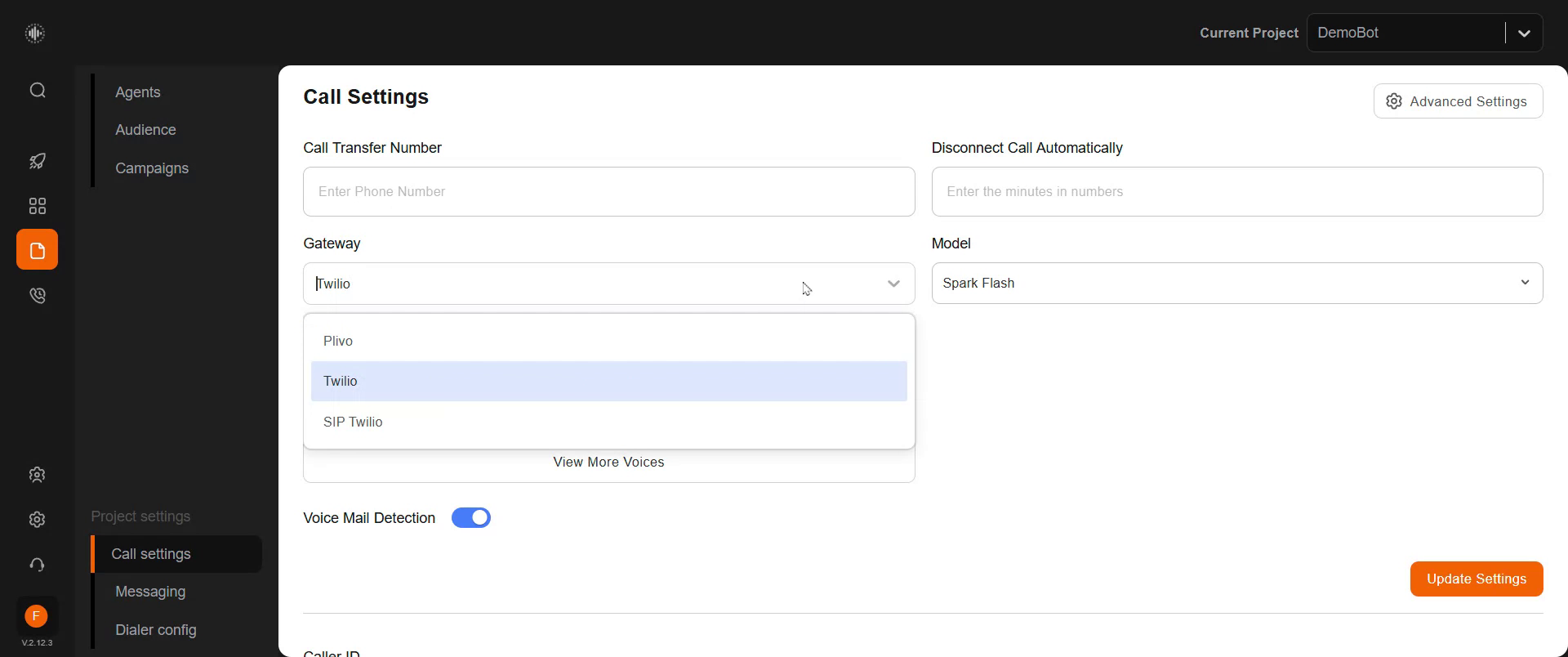
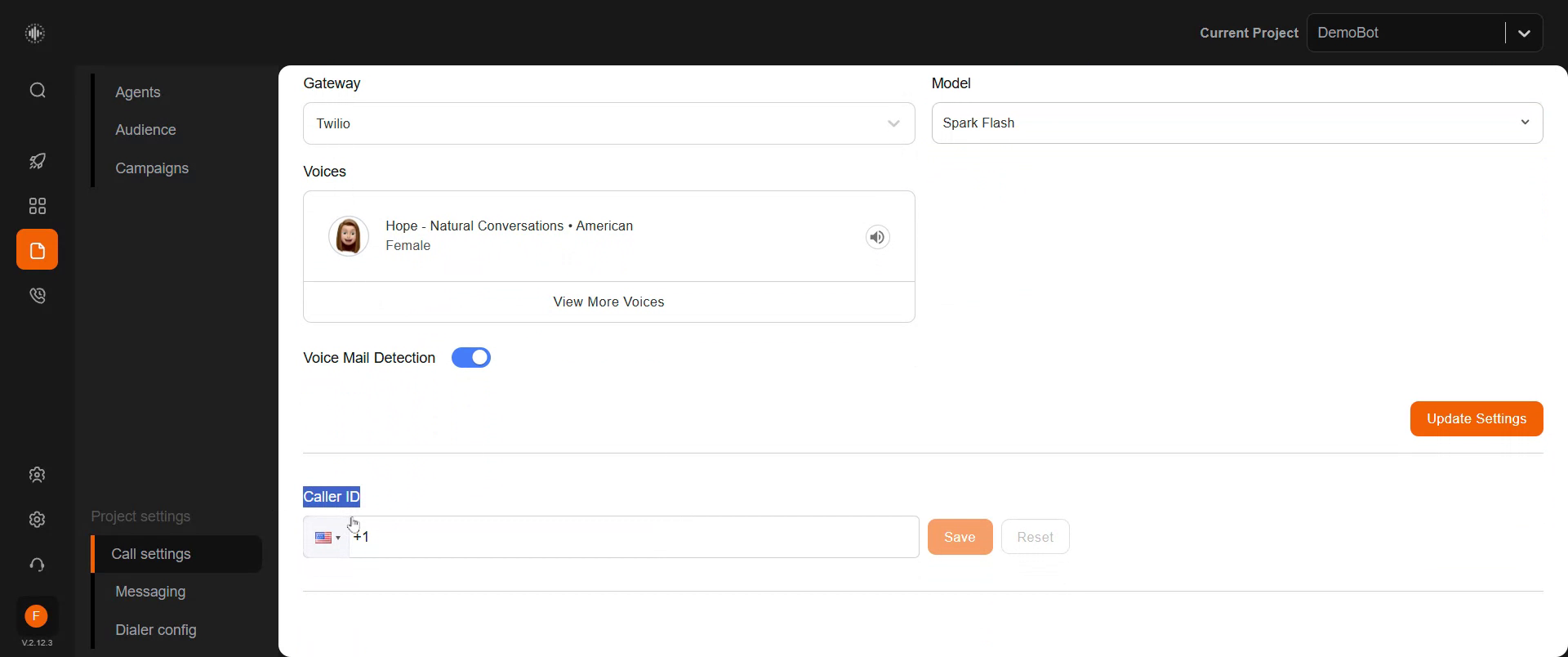
Select your gateway by choosing your SIP trunk provider. In this example, Twilio is already selected.
Step 3
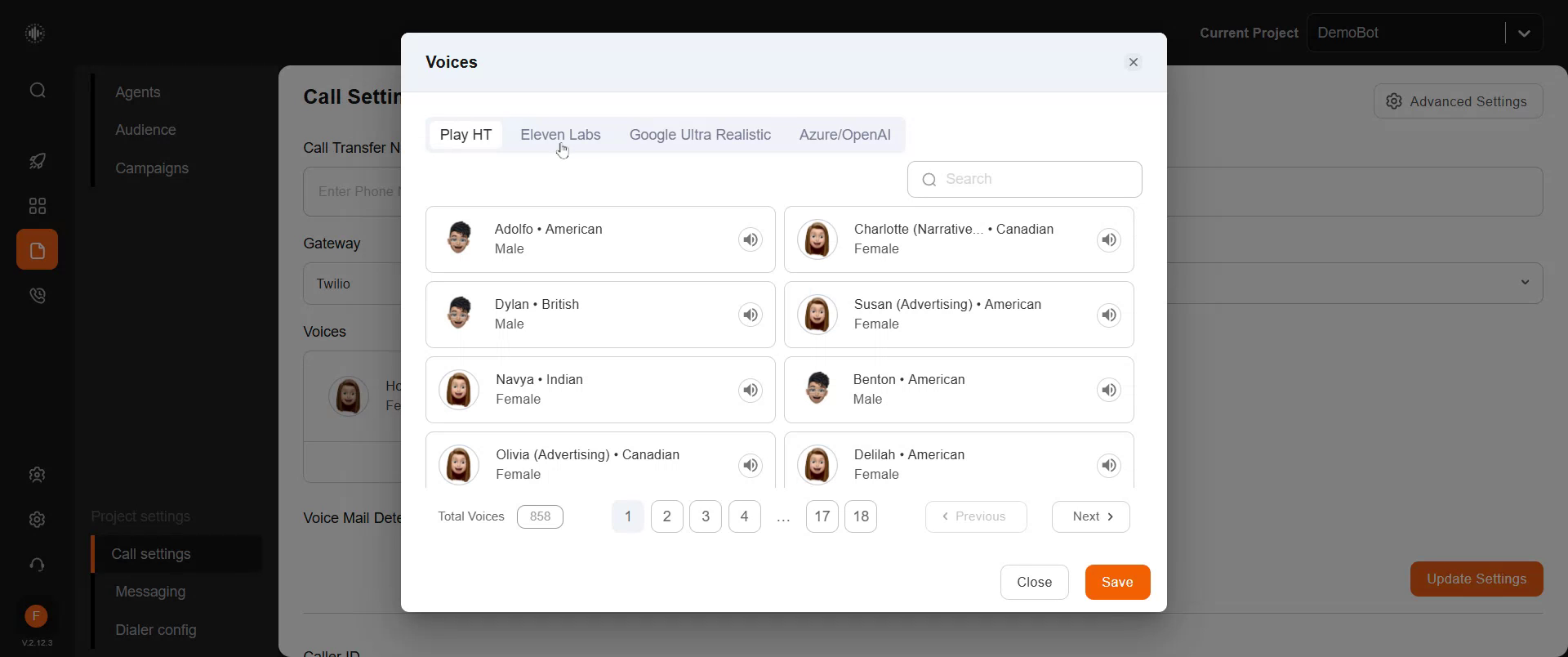
Proceed to choose the voice for your AI agent.
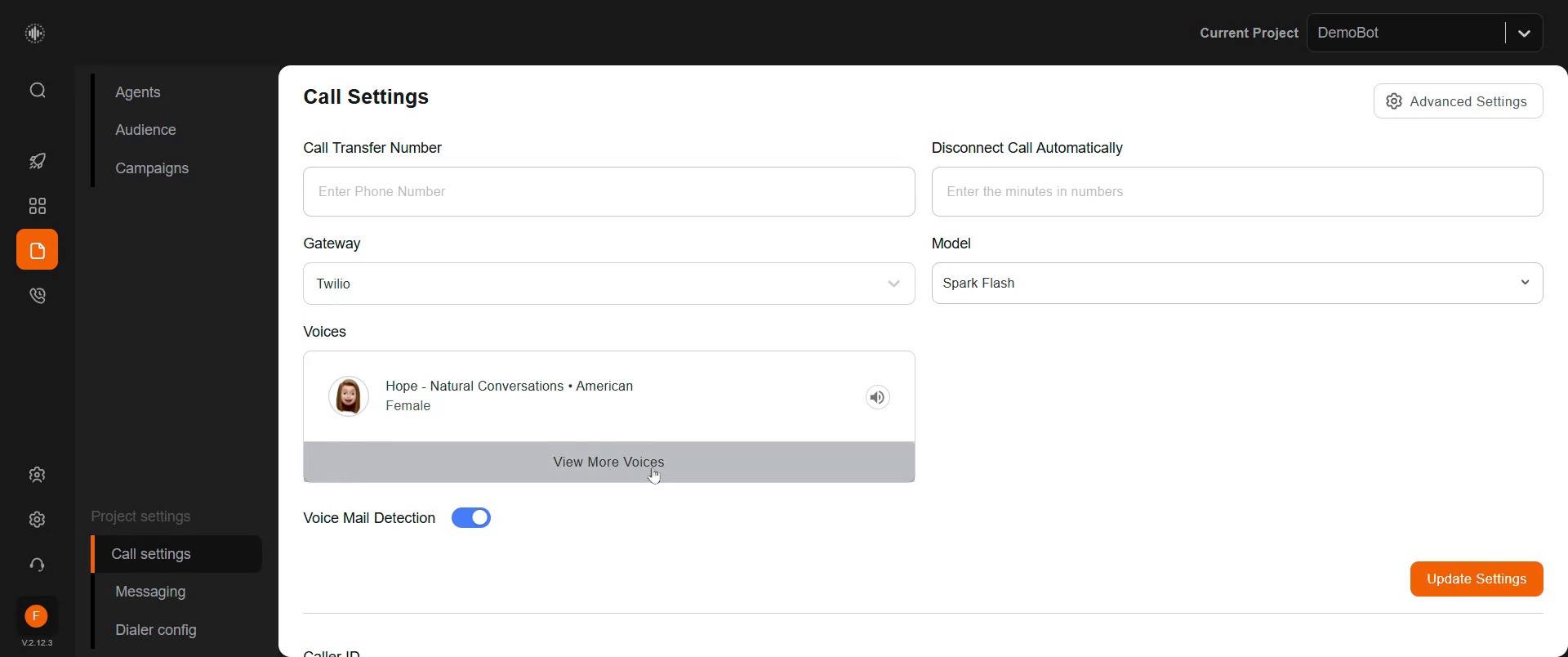
Explore voice options from various providers including PlayHT, ElevenLabs, Google Ultra Realistic, and Azure OpenAI. Choose from a wide range of voices and accents based on your preferences and requirements. Decide how you want the AI agent to sound and select the voice from multiple providers.
Step 4
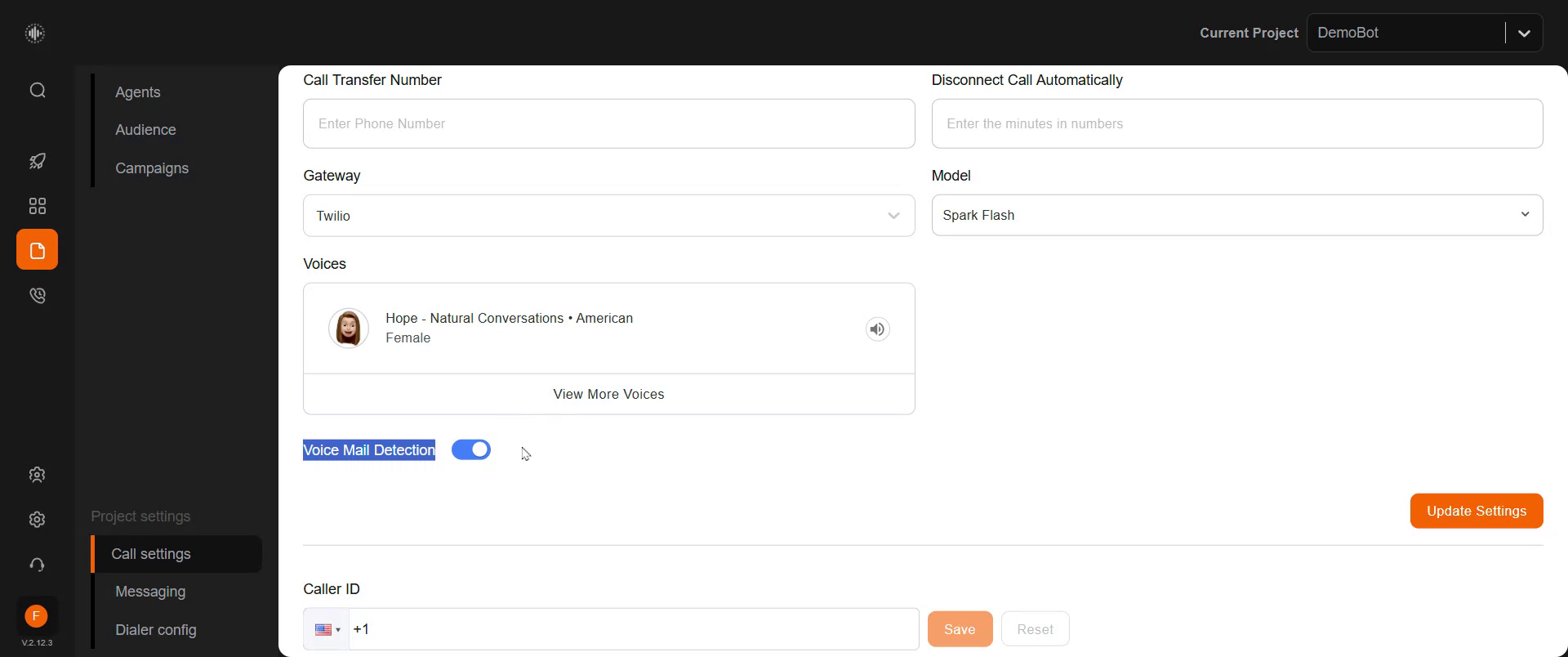
Enable voicemail detection if you want the AI agent to detect when a voicemail is reached and leave a message. You would have initially set up a voicemail message in the first tab.
Note: Voicemail detection/leaving a voice mail incurs a small charge.
Step 5
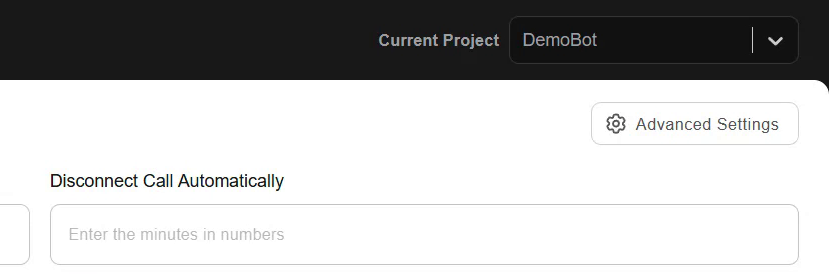
Set an automatic call disconnection time limit to avoid unnecessary charges if a call exceeds a certain duration. Specify the limit here.
Step 6
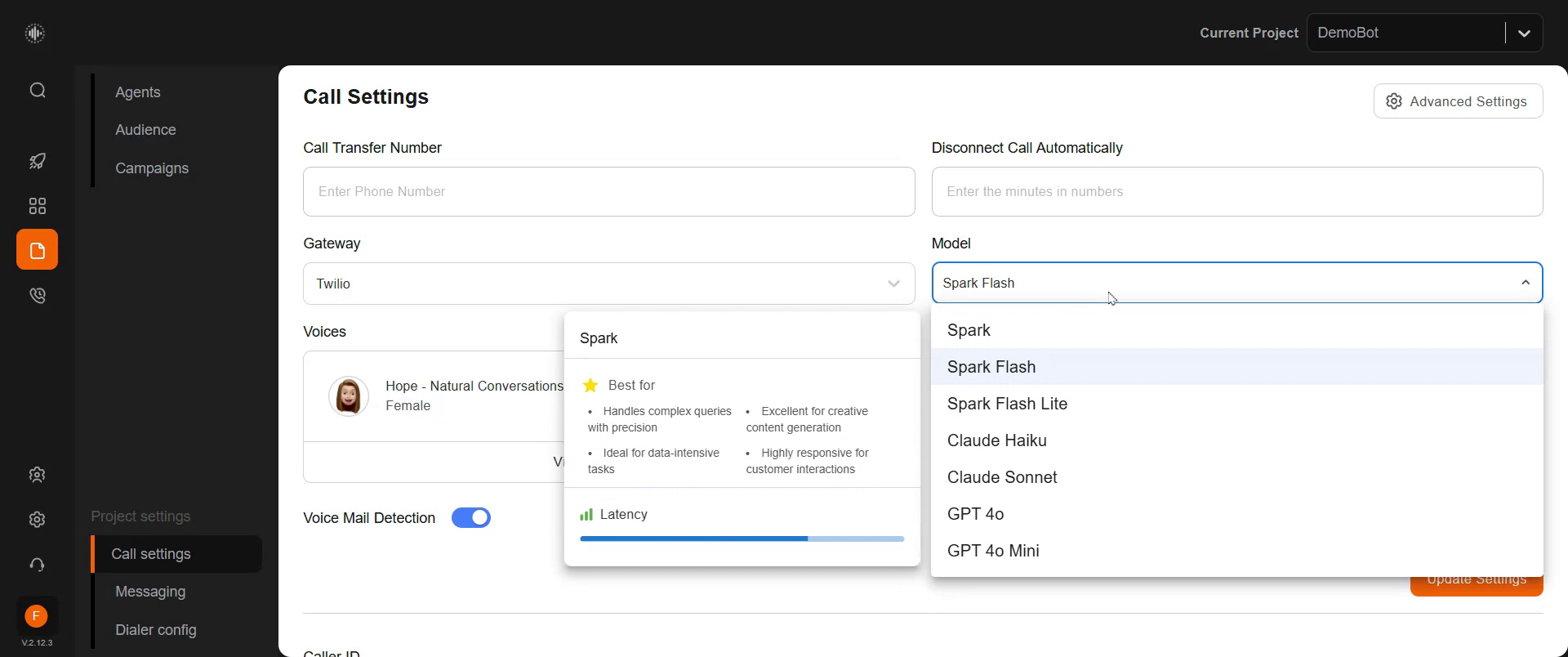
Select the AI model you wish to use for this specific agent. Options available include Spark and other models. Hover over each model to view a pop-up detailing its strengths and expected latency. Choose from various AI models like Spark, Spark Flash Lite, Claude, GPT-4o, and GPT-4o mini. Consult with our team to determine the best model for your needs.
Step 7
Enter the caller ID number that the AI will use to make phone calls and save it.
Step 8
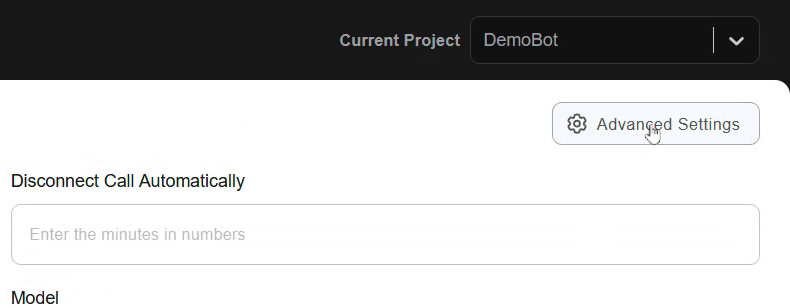
Now, delve deeper into the advanced settings.
Step 9
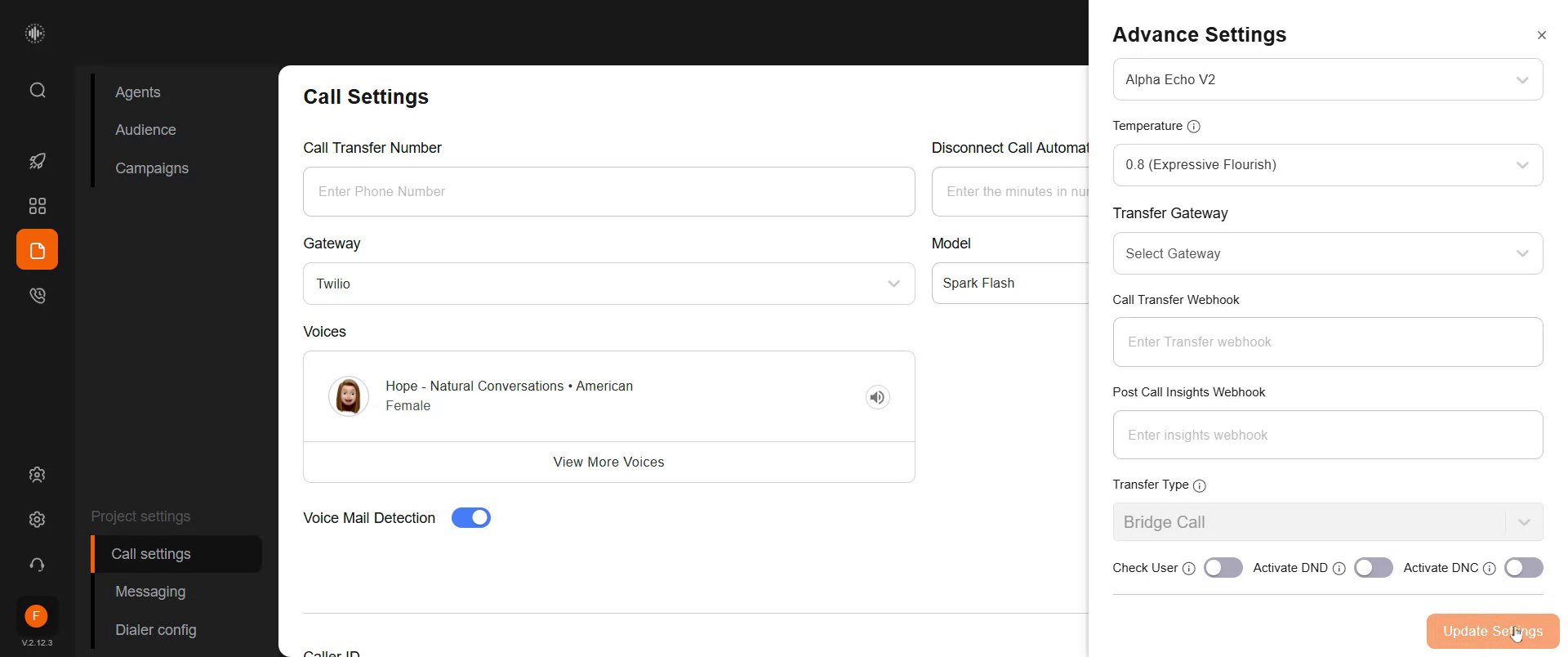
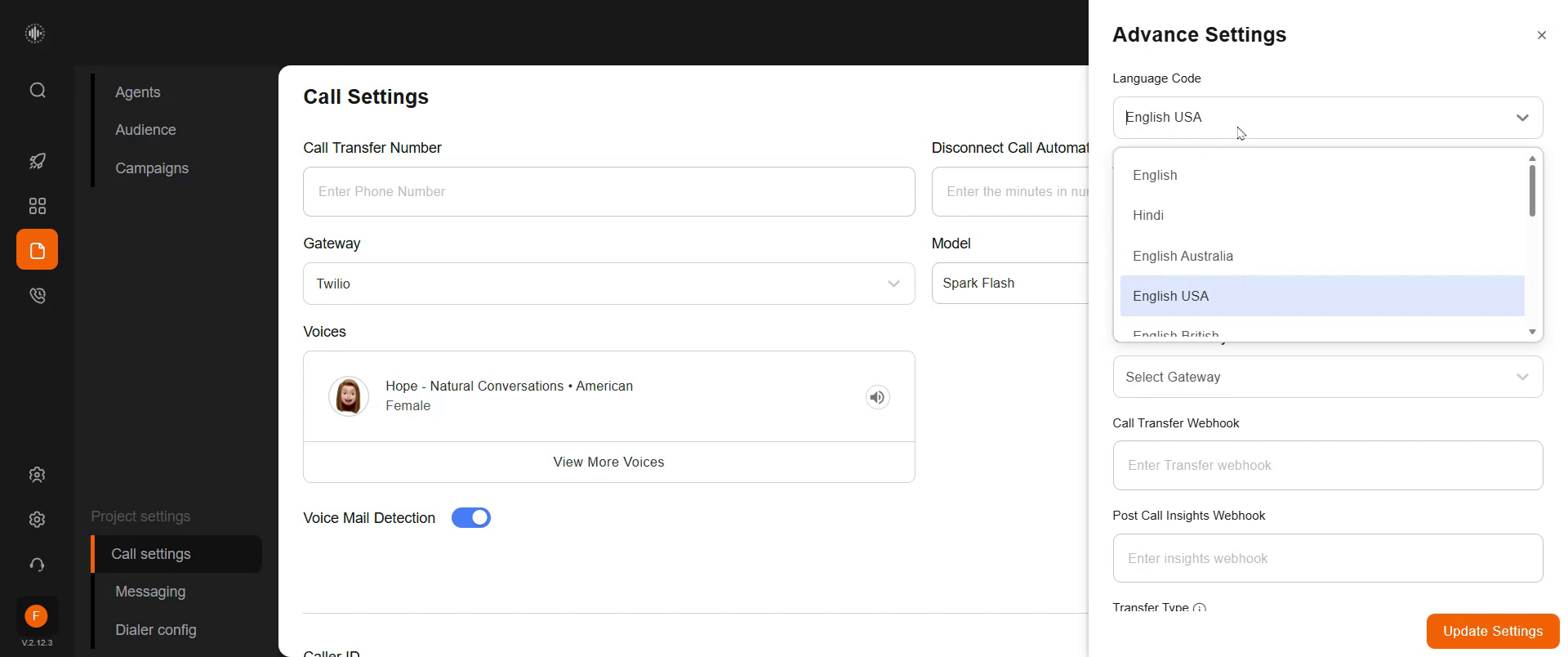
Access the advanced settings by clicking here. Select the specific language code.
Step 10
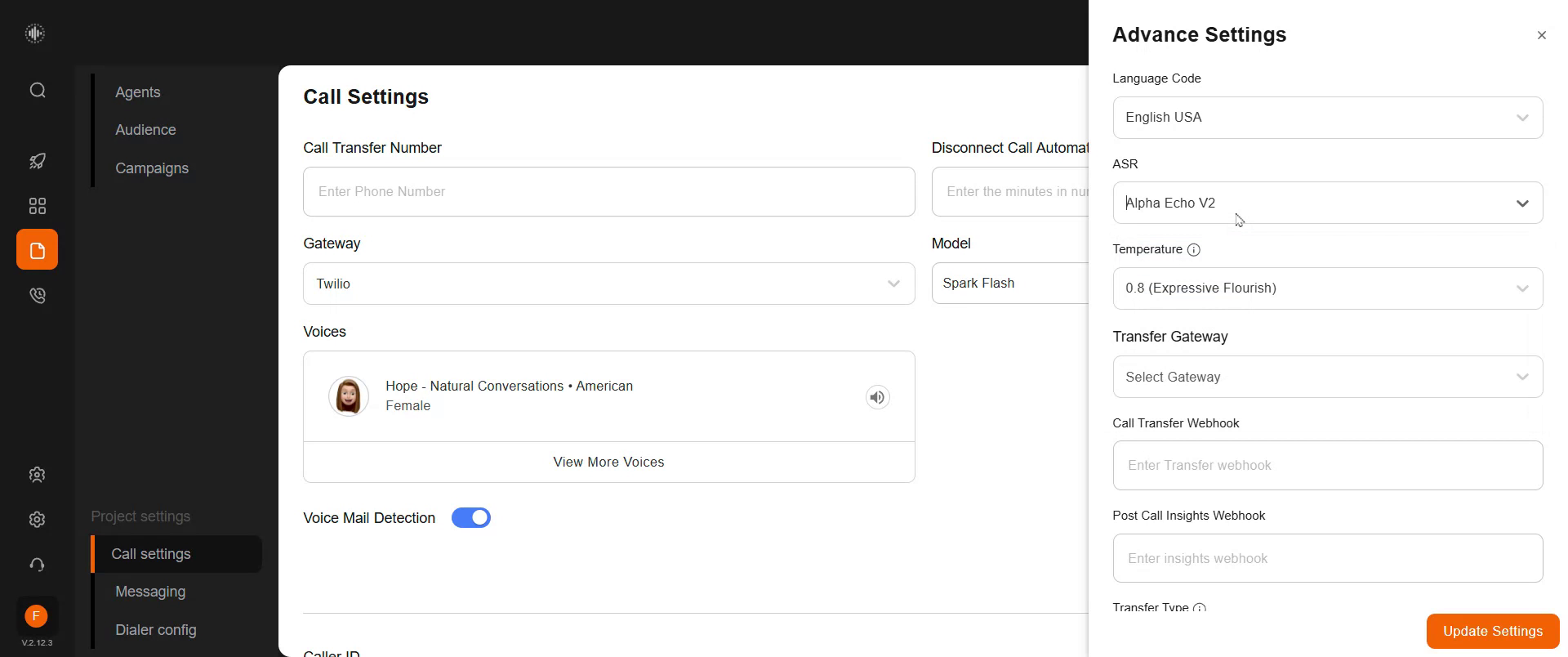
The ASR model. By default, AlphaEcho V2 is selected. Reach out to our team for guidance on choosing the appropriate ASR model.
Step 11
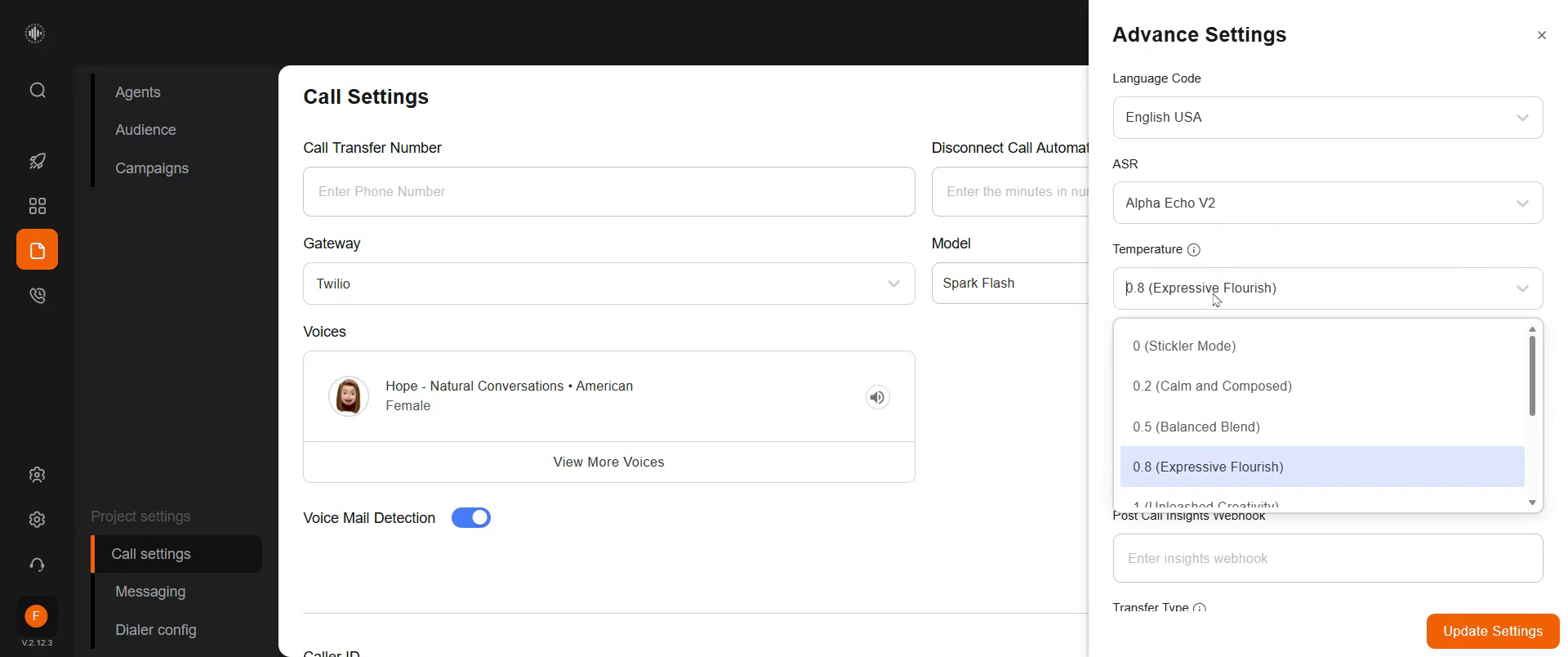
Adjust the temperature setting to influence the AI's adherence to scripts. A lower value keeps the AI on script, while a higher value allows it more freedom. For strict scenarios like debt collection, choose a setting of 0 or 0.2. This is commonly used by clients for optimal script adherence.For a more conversational AI, choose a setting of 0.8 or 1. This will affect how expressive and interactive the AI agent is. Settings of 0.5 to 0.8 are the preferred range for many scenarios. For simple question-answering or strict script adherence,
Step 12
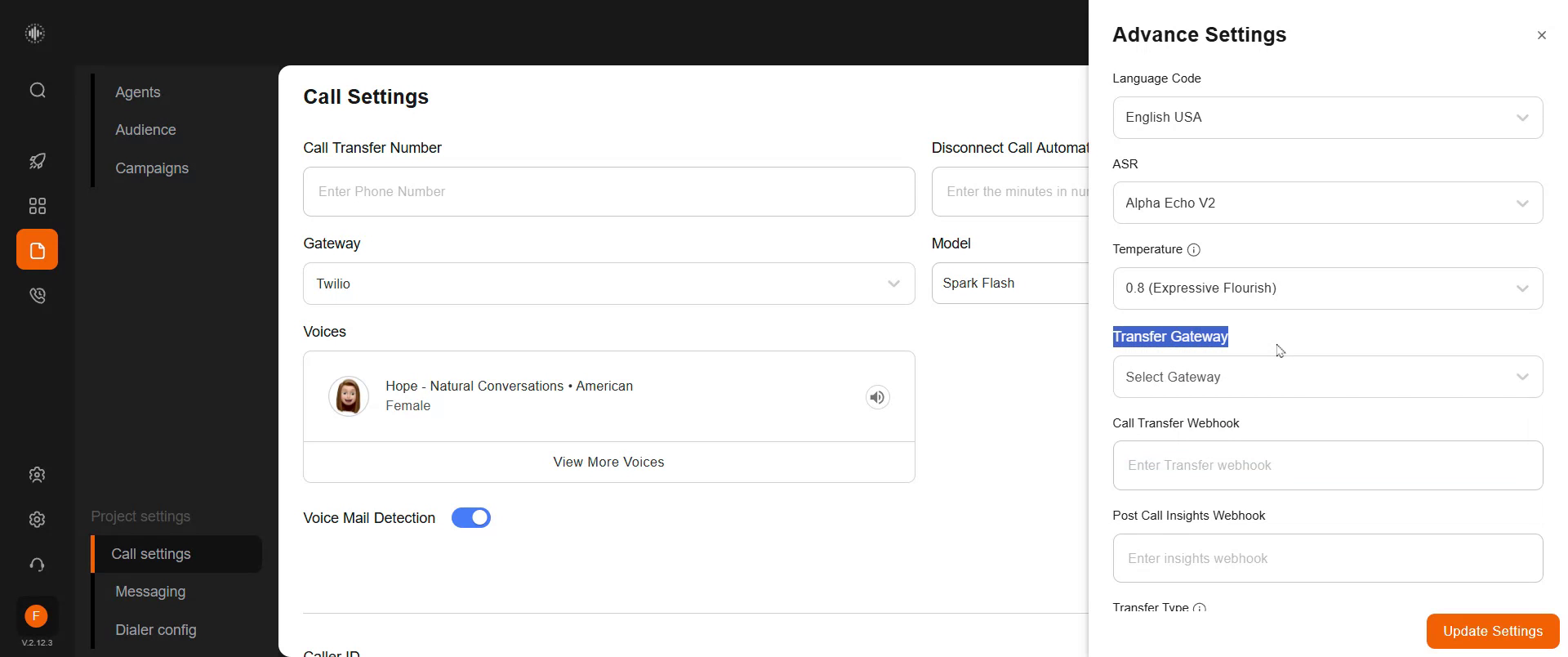
Add a transfer gateway, call transfer webhook, post-call insights webhook, and select the transfer call type from this section.
Step 13
Update the settings by applying the changes here.